OneLake catalog
Since Power BI has been transformed and become part of the Microsoft Fabric platform, we have a number of new, useful options at our disposal. OneLake is the place where all of an organization’s structured, semi-structured, and unstructured data now resides, and is stored in an open Delta Parquet format for ease of access, sharing, and management . The OneLake catalog is a feature within Microsoft Fabric that works as a centralized place to store, find, analyze data.
If you go to the Power BI service (Microsoft Fabric), you’ll see in the menu of the left a button called OneLake catalog. By clicking on this button you enter the menu where a catalog of all the data stored within the OneLake platform is displayed. Here you can search for data, and it is also possible to filter view to make it easier to reach the data you are looking for.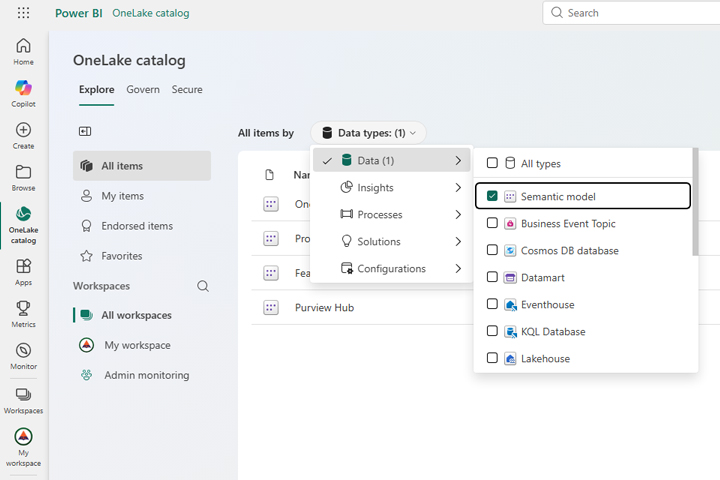
It is now possible to access the One Lake catalog directly from the Power BI Desktop application. Imagine the following scenario: one of your colleagues imported data from one or more sources, transformed it, and saved it as a semantic model within Microsoft Fabric environment. How do you create a new report based on this existing model?
You’ll start Power BI Desktop and create a new document. By default, you need to be logged in to be able to retrieve data from your organizational tenant. Click on the OneLake catalog, and then select Power BI Semantic Models.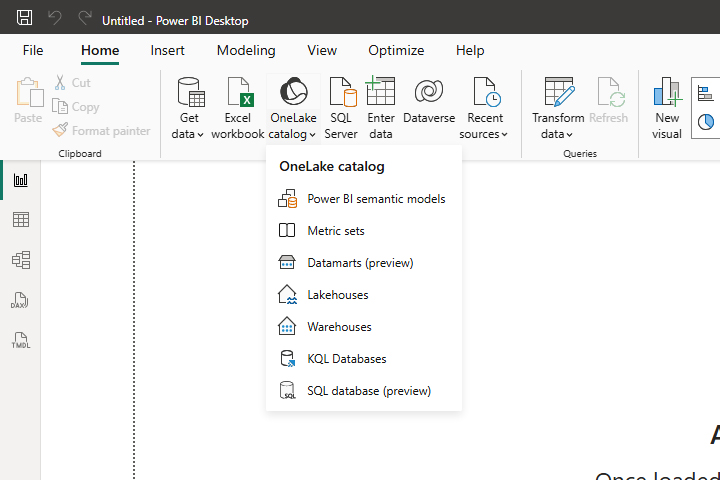
Now you need to select the desired semantic model from the window. Let’s choose the one called Prodaja (Sales), and then click on the Connect button. With this action, we import the data into Power BI Desktop.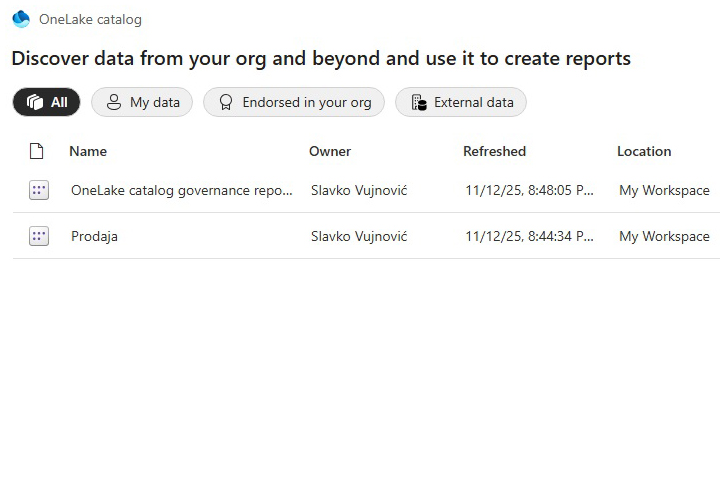
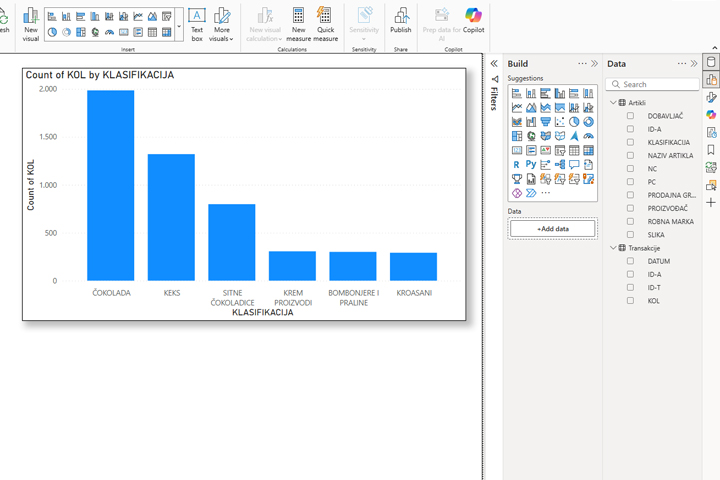
In the Data panel, on the right, you will see the tables that we imported from the Prodaja (Sales) semantic model. You are now free to use the available reporting dimensions to create the report you want.