Formatting objects

Since version 2007, Excel has been enriched with a wealth of options for “beautifying” reports, and from version to version it offers more of these functionalities that can be applied to the formatting of all graphic objects, whether these are charts or their elements, images, shapes, schemes … The following text will show how the appearance of the graphic object can change: its body, frames, the use of special formatting styles …

Adding shapes

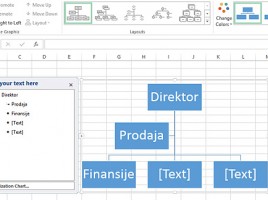
Excel has a large number of shapes (rectangles, ellipses, arrows, triangles, etc.) held into groups that we can use to illustrate a flowchart, process, hierarchy, organizational scheme … Excel can significantly replace Visio, whose purpose is to draw various diagrams, and allow us to display them in the report, and the text that follows will describe the ways they are added and edited.

Cropping images

Once we have added an image to Excel, we will often change its dimensions immediately, which can be done manually or by setting the height and width. It happens that the added image contains some unnecessary details. In that case, we are cropping the image to highlight only those parts of the image that we want to see in the worksheet. In addition to simple cropping, Excel also offers several advanced options for cropping images (fitting into a desired frame) …

Adding images

There is a saying that “the picture speaks more than 1000 words”. By adding images, reports seem to look more beautiful and striking, and since 2007, Excel has several advanced image processing options. It is possible to change the contrast and brightness of the image, make it sharper or blurry, change colors … Also, we offer a number of filters that can change the image’s appearance in a similar way as we would do in some professional graphics design software.

Searching the ranges

The search of data ranges is most often done with the help of LOOKUP functions, where we enter the  criteria value, the search range (table) and the column containing the result values. After entering the formula, Excel finds and displays the requested value. There are several more ways to search the ranges when it is done relative to their position, which will be discussed more in the text that follows …