Retreiving data from pictures

Power Query (which has been the go-to tool for importing data into Excel for some time now) has a new option! Rereiving data from PDF documents has been around for a long time, and now you can also pick up tables from an image or image on the clipboard. So, if someone sends you an invoice that they took a photo of via Viber or WhatsApp, you don’t have to enter the data manually.

Cropping images

Once we have added an image to Excel, we will often change its dimensions immediately, which can be done manually or by setting the height and width. It happens that the added image contains some unnecessary details. In that case, we are cropping the image to highlight only those parts of the image that we want to see in the worksheet. In addition to simple cropping, Excel also offers several advanced options for cropping images (fitting into a desired frame) …

Adding images

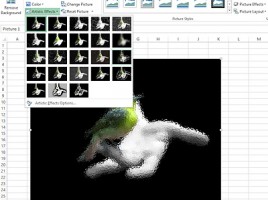
There is a saying that “the picture speaks more than 1000 words”. By adding images, reports seem to look more beautiful and striking, and since 2007, Excel has several advanced image processing options. It is possible to change the contrast and brightness of the image, make it sharper or blurry, change colors … Also, we offer a number of filters that can change the image’s appearance in a similar way as we would do in some professional graphics design software.

Converting table into image

Switching the Excel spreadsheet to another application like, for example, PowerPoint can be an inconvenient job. If it hates you to deal with details, there is a very simple way to do this, that is to convert the final table into an image, and then copy the image to the desired destination. This can be done using the Paste Special option, as well as using the Camera tool, and the following text will explain how to make the most of this option.