Localization of Power BI reports
Power BI Desktop uses the currently active language settings (Settings/General/Language) when creating reports. If the report will be available to users who speak different languages, it is possible to implement multilingual support by defining appropriate translations. For visual titles and other key report elements, DAX formulas can be applied that use the USERCULTURE() function to automatically display content in the user’s language.
After you add and link the data required for reporting to the model, you can view the properties of the semantic model in the Data view, on the Model tab. There are, among other things, language settings (Cultures). They are currently not manageable directly from Power BI Desktop. However, if you install the Tabular Editor, you will be able to add more language settings, as well as define translations at the table and column level. Otherwise, multilingualism can be implemented using the USERCULTURE() function, and we will show how to use it with a simple example.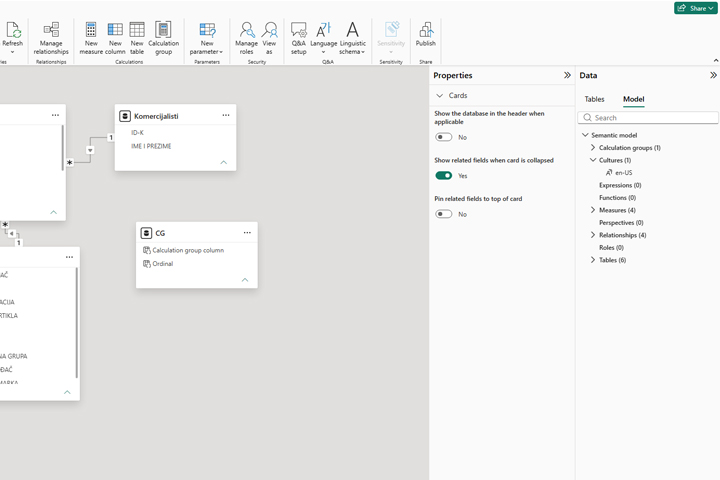
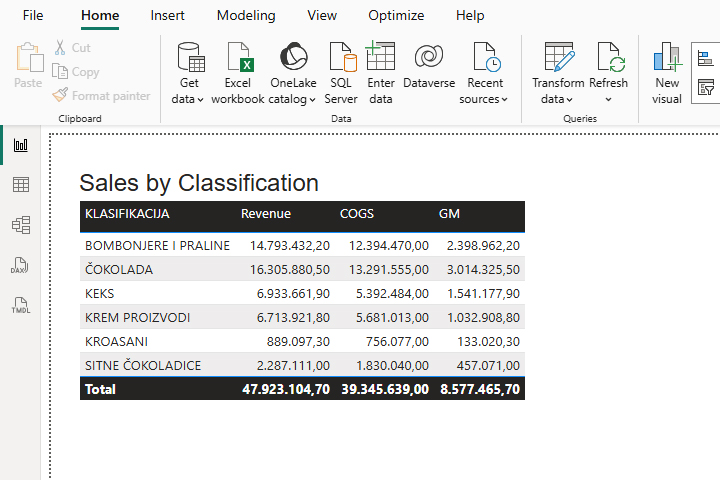
The report includes a table visual that shows revenue, COGS, and gross margin depending on the classification. Imagine that you need to define a title for a visual that should support display in multiple languages. To do this, we’re going to create a measure like the one you see in the picture: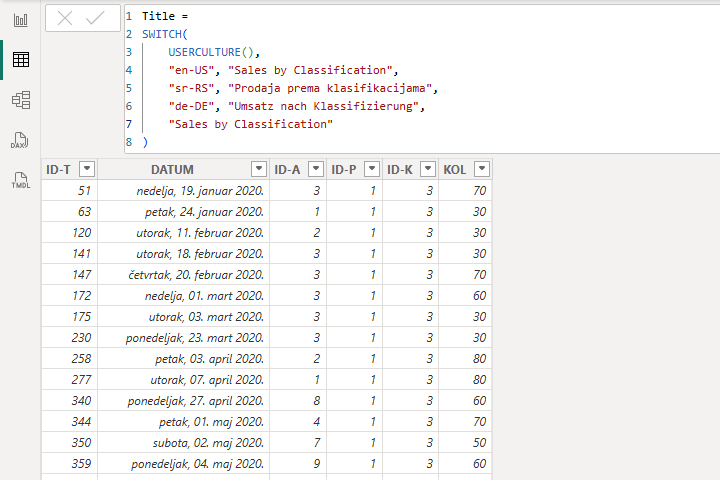
The USERCULTURE() function returns the code of the user’s culture (for example, en-RS or en-US). The formula then, depending on the value obtained, selects the appropriate title to display. The last argument of the formula defines the default title that will be displayed when the user’s culture is not explicitly covered by the preceding conditions.
Now all we need to do is add the title of the visualization, as well as set it to be taken from the DAX measure, which we just created. Open the formatting menu and then the Title… Next to the Text field, where the title can be entered manually, there is also an fx button…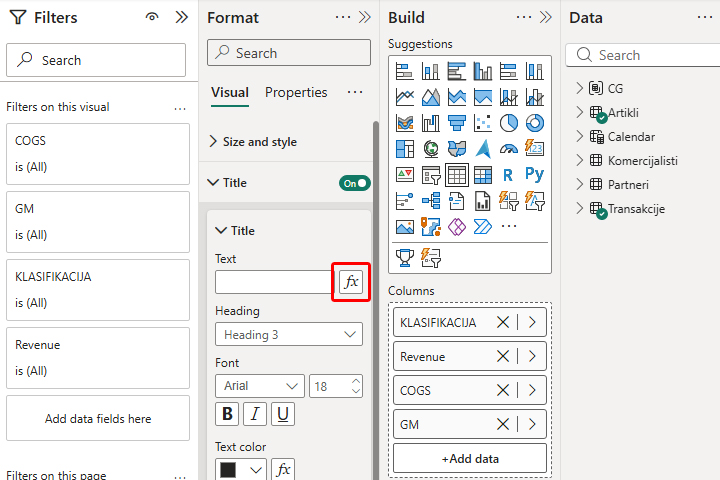
Clicking on this button will open a window in which we can define that the title is displayed based on the Title measure.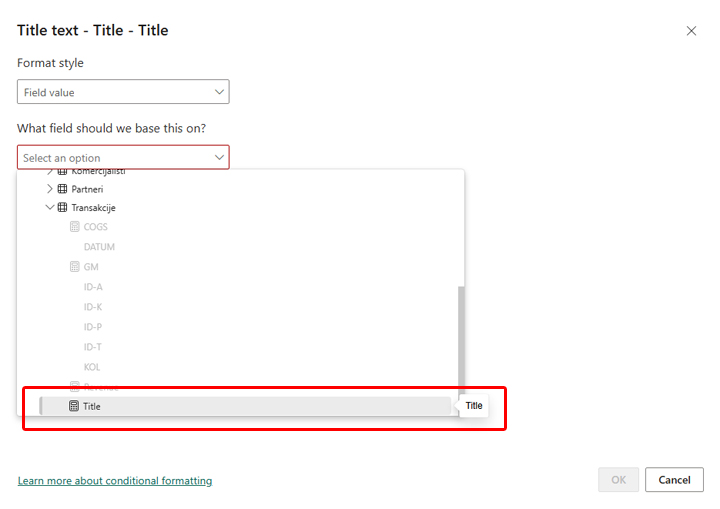
After confirming the entry, the table visual that we initially added will receive a title based on the detected language settings.