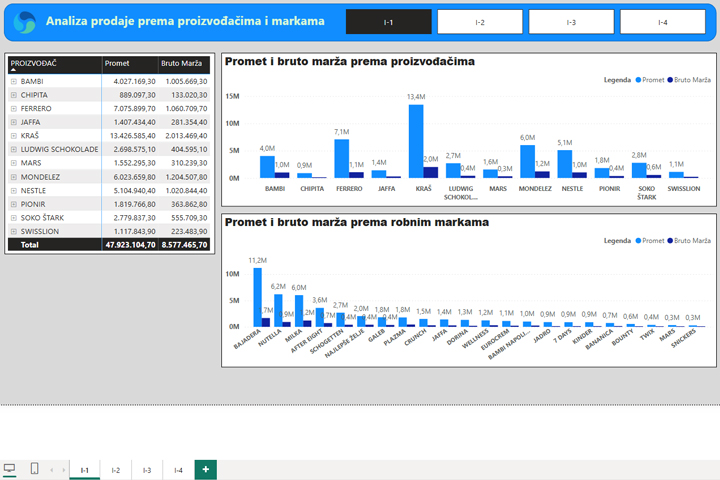
Navigation in Power BI
If you’re creating a Power BI report that consists of multiple pages, it’s a good practice to add a navigation menu to its header. Previously, this was achieved by adding multiple buttons, assigning links to each of them that lead to the corresponding pages, and then grouping them into a single menu. Today, there is a much simpler way to achieve this, and recently it is also possible to define a landing page.
We have created a Power BI report that consists of four pages. If you want to declare one of them as your home page, right-click on the tab that represents it, and then select Set as landing page.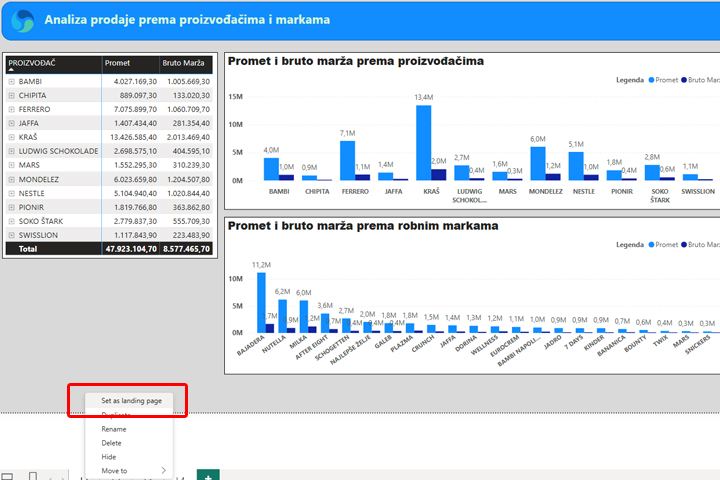
Traditionally, the navigation menu was added from the Insert ribbon, by selecting a convenient buttons from the Buttons menu. Recently, at the bottom of the menu, there is a submenu called Navigator.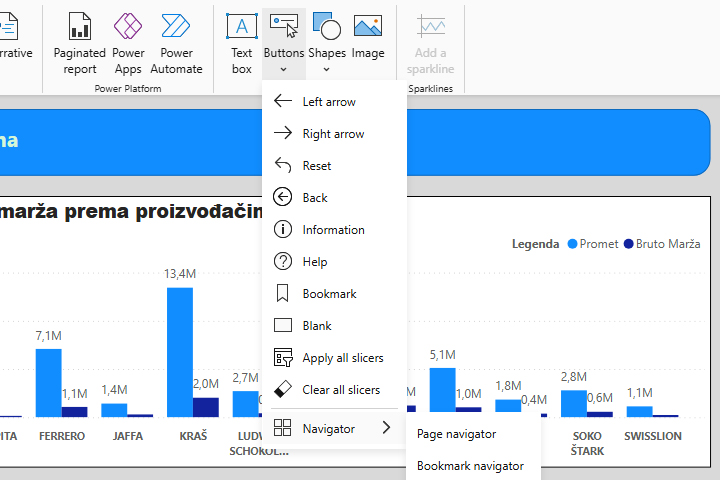
By selecting the Page navigator option, you automatically add buttons and links to all pages – the navigation menu. Bookmark navigator works in a similar way, except that this option allows you to create buttons for each previously created bookmark. Once you’ve created the navigation menu, all you have to do is find it a convenient place and then copy it on each page of the report…