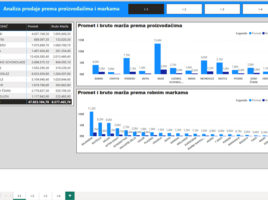
Navigation in Power BI

If you’re creating  a Power BI report that consists of multiple pages, it’s a good practice to add a navigation menu to its header. Previously, this was achieved by adding multiple buttons, assigning links to each of them that lead to the corresponding pages, and then grouping them into a single menu. Today, there is a much simpler way to achieve this, and recently it is also possible to define a landing page.

Navigation

We often come across Excel documents that have multiple reports found in several worksheets. If you want to find the report you want, click on the tab with the name of the corresponding worksheet. However, this is not always the optimal solution. In order to facilitate positioning on the desired report, we introduce links that we have attached to certain forms. That is, we introduce a navigation panel to navigate within the document.

Slicer navigation

Power BI Desktop has been supporting buttons for some time which make it easy to navigate between multiple pages within a Power BI report. Until now, the button could only lead to one given destination (page) and now, by combining the button and the slicer, it is possible to provide a selection of the page with the report you want to look where you further go by clicking on the button. In this way slicers become main tool for navigation.