
Quick formatting shortcuts
In everyday work, we often enter numbers, and then we format the way they are displayed within the cell. This is usually done by activating the Format Cells option, from the Home ribbon or by using the CTRL + 1 shortcut, and then choosing some of the cell content display options that are integrated into the Number tab. But since in practice we are dealing with just a few formats of a number record, it is much more useful to use shortcuts to quickly format content.
This technique is carried out by pressing the combination of the CTRL + SHIFT key along with some of the number keys. Symbols on numbers with number keys will closely associate you with the action you want to perform. So, for example:
- CTRL + SHIFT + 1 – results in the formatting
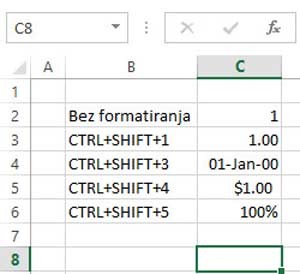 of the number in cell to decimal with two decimals.
 - CTRL + SHIFT + 3 – converts the number to the appropriate date
- CTRL + SHIFT + 4 – converts the number in the currency (the symbol of the currency is added to the decimal number, depending on the regional system settings)
- CTRL + SHIFT + 5 – converts a number to a percentage (ie, the decimal number is multiplied by 100 and Excel further adds the symbol %)
With a quick change from one format to another, you will easily find that Excel essentially does not know data types other than numbers and text. Dates, time, currencies, and percentages are in fact only differently formatted numbers. This knowledge can be useful to you if, for example, you want to calculate how many days have passed between two dates: it’s only a difference of two numbers!
 When it comes to text, any information you enter in a cell by first typing the apostrophe (‘) will be automatically converted into text. This will be recognized by the fact that the text is automatically aligned on the left side of the cell, while the numbers are aligned on the right by the input. This feature can be useful for entering regular numbers in the table. In newer versions, Excel will automatically alert you when you enter the number as a text, in the upper left corner of such a cell, a small green triangle symbol will appear, giving a warning of a possible error.