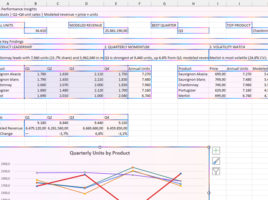
How Copilot changes your document?

You can start Copilot in Excel by clicking on the icon located in the lower right corner of the window. After that, on the right side of the screen, the Copilot panel will open. In it, you can chat with this AI assistant, but also engage it to make various changes to the document you are working on. This “recipe” will talk about the available modes of operation and the ways in which Copilot can affect your Excel reports.
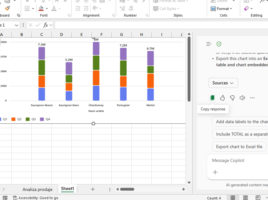
Copilot in Excel documents

More recently, Microsoft Copilot, an AI-based assistant, has become an integral part of Excel in all its versions. Now it can help you, in English or another language, analyze data, create charts, offer you the appropriate Excel function, or show you its syntax. To put a long story short, it can make your daily work much more productive!

Meetings

When, in the context of Microsoft Teams, we use the word meetings, we mean audio or video meetings. In the first case, participants have only a microphone and headphones or speakers from the hardware; then instead of them other participants can see avatar shown as initials or profile photo. When it comes to video meetings, participants can also see each other. In both cases, they can share the screen content, chat, raise hand…

Conversations

Microsoft Teams has a wide range of options for creating conversations, from the ability to change the color and style of text, format paragraphs and add links, through adding emojis, animated GIFs and stickers, all the way to schedule meetings, create approvals and access additional cloud applications which can expand the capabilities of traditional chat. Let’s see how these options are used!

Chat menu

The Chat menu is used to start or continue a conversation with one or more users. You can save, filter and search conversations, and instead of the simple text, which chats used to be, you have a lot of opportunities to highlight what you wanted to say. You can format a font or paragraph of text, add emoji symbols, animated gifs, stickers …