Elements and filtering of Pivot tables

Pivot tables have built-in options for applying autofilter to display data relative to rows, columns, and filters. By opening the autofilter menu, data sorting can be performed according to the specified reporting dimension, or it can narrow down the set of displayed values in the table by setting the conditions that relate to the description or value of the data displayed in the report. More about filtering Pivot tables can be found in the text that follows …

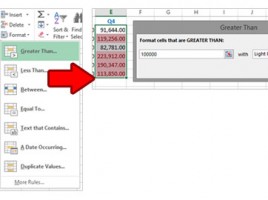
Conditional formatting

Even the best reports sometimes require that some information be emphasized in order to be more visible to the observer and help him to make certain conclusions. Conditional formatting is an Excel functionality that emphasizes the appearance of a particular cell or group of cells based on one or more rules. The appearance is formed on the basis of the data value or satisfaction of the conditions specified in the formula.

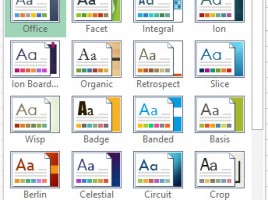
Using themes

Subject of one of the previous posts was using styles in Excel. Themes can be viewed as their upgrade that allows us to define color palettes, fonts and effects. The most useful is, I think, the ability to change color palettes. This option allows you to adjust completely different colors than usual in the color or font colors of the font formatting menus. Let’s explain how this is done.

Styles

Excel styles are a useful way to define certain features of cell content formatting and give them a name, so that we can later use them more easily to format similar tables. For example, a style with the title “Header” can be used to format the headers of all the tables we make. Once saved style can be applied multiple times, and the subsequent change of style automatically changes and the formatting characteristics of all the cells in which the style is applied.

Quick formatting shortcuts

In everyday work, we often enter numbers, and then we format the way they are displayed within the cell. This is usually done by activating the Format Cells option, from the Home ribbon or by using the CTRL + 1 shortcut, and then choosing some of the cell content display options that are integrated into the Number tab. But since in practice we are dealing with just a few formats of a number record, it is much more useful to use shortcuts to quickly format content.