Data profiling tools

When importing tables from data sources there is a possibility of error or import of empty values. Also, in order to optimize the model, there is often a need to see the structure of the data according to the columns. One way to achieve this is to filter the table and view the filter values. It can serve! However, Power Query has built-in tools that allow us to easily view data statistics …

Custom data types

Traditional Excel has only two data types: text and numbers. All others (date, time, percentage, etc.) are specially formatted numbers. In the second half of 2019, Microsoft added new data types to Excel: Geography and Stocks. First, for a given term, offers an abundance of geographical determinants while the second provides data on stock market. A lot of new types have been announced, and since recently users of Microsoft 365 subscriptions can create custom data types.

Customizing source table

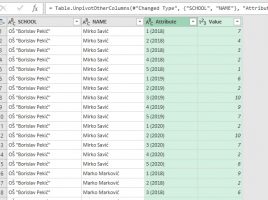
Before you decide to create a pivot table, ask yourself: do you really need it? This report groups and aggregates data (summation, averaging, counting, etc.) and you may have already done so in the source table; maybe it is, in itself, a report? If you do decide to take this step, you will need to adjust it so that the pivot table can process the data, because it requires that the records be in rows.

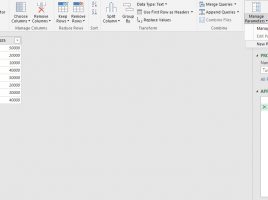
Power Query parameters

Parameters are variables or sets of values ​​that are intended to influence the appearance of a query. They are mostly used for filtering, but if you know the “M” language you can also use them for other purposes. Since I will not (for now) write about how “M” statements are created, I will use a simple example where a single parameter will be created and we will use it to filter a query.

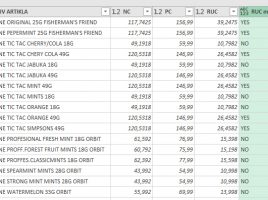
Conditional Column

Power Query has a feature called Conditional Column, and its mission is to emulate the Excel IF function. That is, by checking the conditions for the given column and the value returns the result if the condition is fulfilled and optionally the result if not. If no other parameter is specified it returns a NULL value in rows that do not meet the specified condition. Let’s see how this option is used!