Even newer slicers

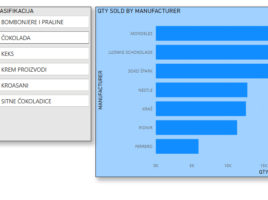
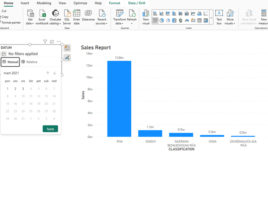
If you want to allow the user to filter a report or one of its parts, you can do so by adding a Slicer visual. Traditional slicers are just fine, New Slicer visual has brought some additional improvements, and recently three new, similar visualizations have appeared, which can improve the quality of your reports. Let’s see what it’s all about.

New Slicer visual

Slicers are interactive objects used to filter pages or the entire Power BI report. They haven’t changed much since their inception, and since they represent an essential component of the report, they got a small facelift. Since November, a new Button Slicer visualization has appeared, which has the properties of traditional slicers, as well as some additional formatting options that make it much more beautiful. Let’s see what it has to offer!

Up to date slicers

Pivot tables often store data in the cache, and some of that data is also that about slicer elements. Slicers take values ​​from the source table. If we add some of them and then delete them, it may happen that the slicers show phantom values. They are shown in pale color, as if there is no data. And indeed, if we pick such a value, we will get an empty pivot table report. How can slicer elements always be up to date?

Report parameters

In one of the previous articles I wrote about how to use the slicers to filter out PowerPivot reports, and since recent update Power BI Desktop has the functionality to automatically configure these settings. Adding a new parameter creates an auxiliary table for filtering the visuals contained in the report. At the same time, a special slider with which we are filtering appears in the report.

Power BI Desktop visuals

Purpose of PowerBI Desktop application is to create reports on a local machine and publish them in the cloud for users who can see them anytime, at any moment, by Internet browser on a PC or a mobile device. Managers need to get clear, simple and visually nice reports. It seems that PowerBI meets all given criteria. In a text that follows I will describe various ways to create reports in PowerBI Desktop.