
Validation of entered data
When entering the parameters of a calculation, it is useful when we can check that the correct values are entered. This type of control serves to check whether a good type of data is entered, whether the values are in the reference range, and can be used to help when entering data into a table. In this way, Excel can also be used as a tool for completing a questionnaire with predefined answers.
Validating entered values is done by selecting a cell or group of cells, and then in the Data ribbon, from the Data Validation menu, we select the appropriate option. After this action, a dialog box with three tabs will open.
The Settings tab contains options for adjusting the data validation. Here you can find a drop-down list Allow where we determine the test criteria. Its default value is Any Value, which means there are no checks. Depending on the criteria of the check, additional fields will appear, by which we can set the criteria in detail, and offered types of data validation are:
- Whole Number
- Decimal
- List
- Date
- Time
- Text Length
- Custom
Except in the case of a list and user criteria, below  the dropdown list Allow will also contain a drop-down list of Data in which we define a concrete criterion (greater, greater than, less, less than, equally, etc.) and one or two text fields will appear in by which we enter the given values. When it comes to integer and decimal numbers, it is checked whether the entered number meets the criteria for belonging to a certain range; at the date and time it is checked whether it belongs to the date/time period, and when it comes to text, the length of the text is checked.
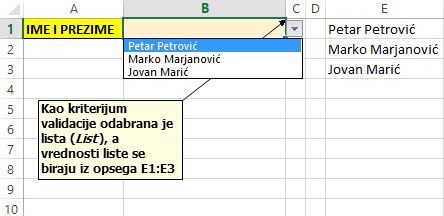
A list of criteria (List) allows us to define a range of cells from which a user will be able to choose a value. When we mark a range of cells, and define such data validation criteria, user will be choosing values rather then entering them manually. A user-defined criterion (Custom) allows you to enter a formula on the basis of which it will be disabled entering certain values within a cell that doesn’t meet formula-defined criteria.
Check box Allow Blank is used to define whether we allow empty cells when entering data. If this cell is unchecked this means that a cell always must contain a value.
The Input Message tab allows you to determine whether a message will be displayed when entering the cell, which informs the user what values he can enter into the cell. The Error Alert tab contains options by which we define what kind of warning it will appear in case of entering the incorrect value in the cell. We can choose the window style, the title of the window and the text that will appear in the warning window.
Sometimes it happens that we set the validation criterion later. If we try not to miss incorrectly entered values there are two more options in the Data Validation menu, located in the Data ribbon. The first is called the Circle Invalid Data and is used to tag all those cells where the criterion is subsequently set up, and their value is not satisfied. There is also the Clear Validation Circles option in the same menu that is used to remove warning information (circles).