Copilot floating menu
Recently, in the lower right corner of every Excel or other Office document, you can notice a new floating icon that allows direct access to the Copilot application. When you hover the cursor over it, a context menu with several useful options automatically opens, while clicking on the icon or pressing the F6 key, on the right side of the Excel window, opens a panel that allows direct correspondence with Microsoft Copilot.
When you position yourself above the Copilot icon, in the lower right corner of the window, you will automatically be offered the appropriate options for working with the AI assistant. If there is no data, Copilot will suggest you, for example, to create a new table or to find out what’s new about this application. If you already have a table in your document, it can offer options for creating data insights, adding a new formula, formatting, etc.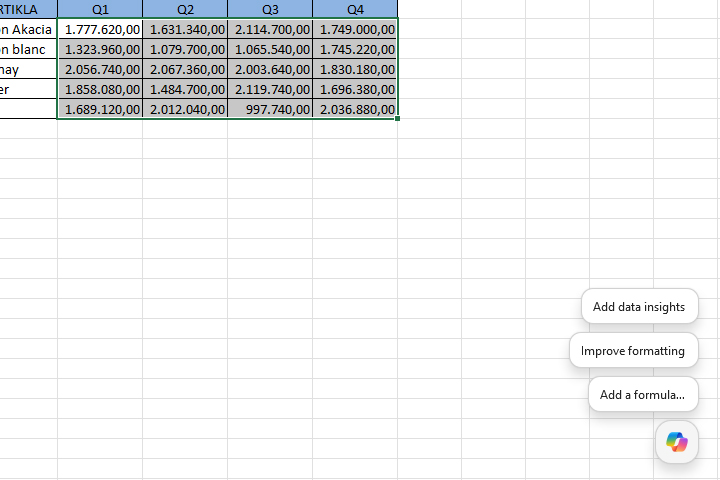
For example, selecting the Add data insights option, on the right side of the screen, will open the Copilot menu in which a prompt is automatically generated that describes the data you have selected in the worksheet.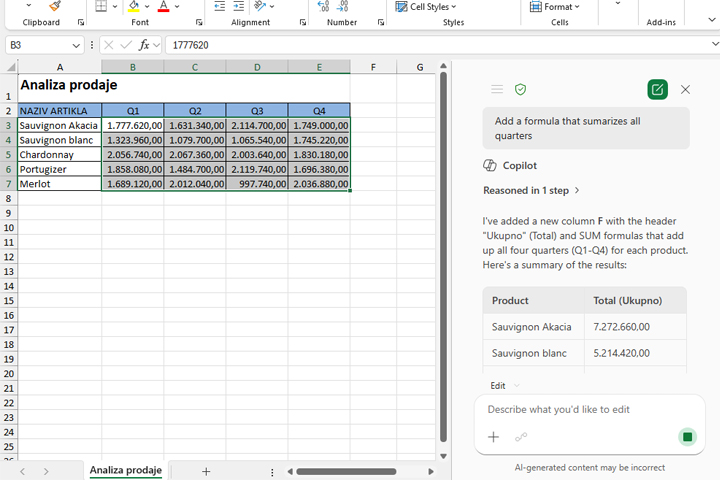
In the Copilot menu, you can do the same thing you could before, and the novelty is that you now have the ability for greater interactivity with the data in the table. When you start a new conversation, Copilot deletes the previous one and will show you a field where you can enter a prompt. At the same time, below this field, you can see a few suggestions of what you could do with your data. Clicking on one of them will generate the corresponding question.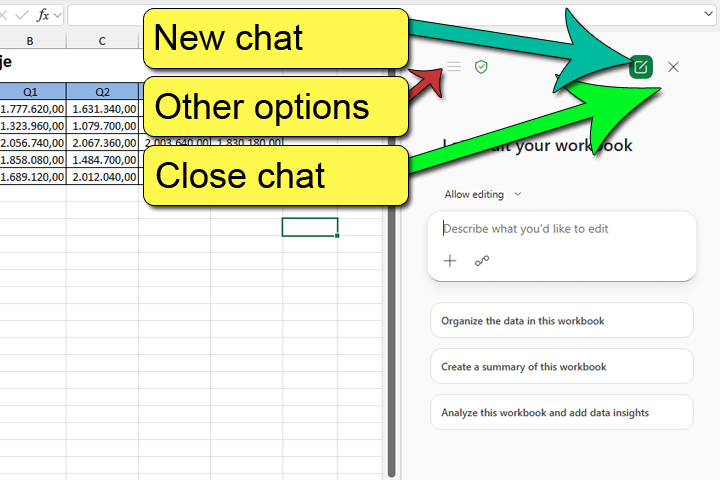
Let’s enter a prompt for Copilot to generate Excel sales to calculate the total value of sales by quarter. Prompt: “Please, create a total for sales by quarters”.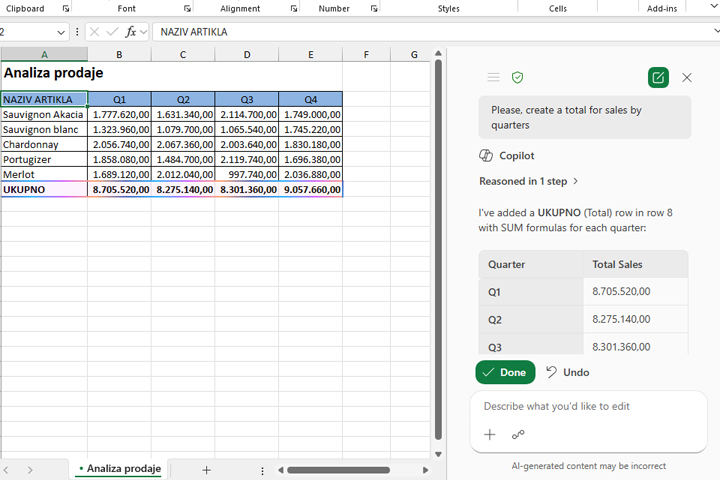
As you can see, Copilot now has direct interaction with Excel spreadsheets, and this also applies to the free version of this application. In this example, it added a row that calculates the total value of sales for each of the quarters. Let’s add another prompt:“Please, add a column on the right which calculate total sales“.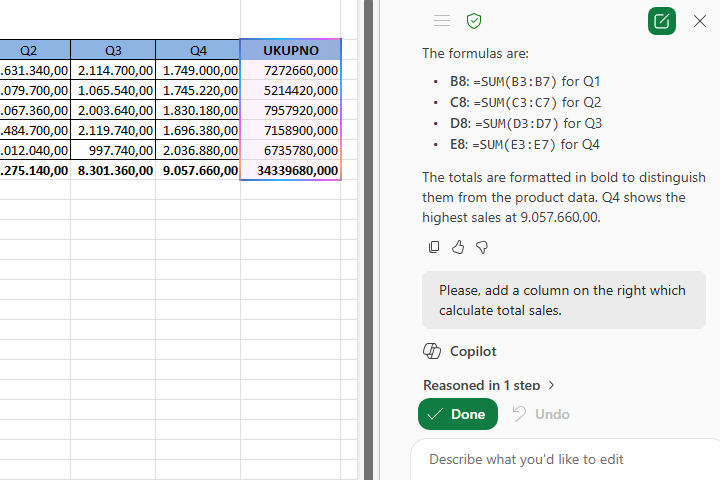
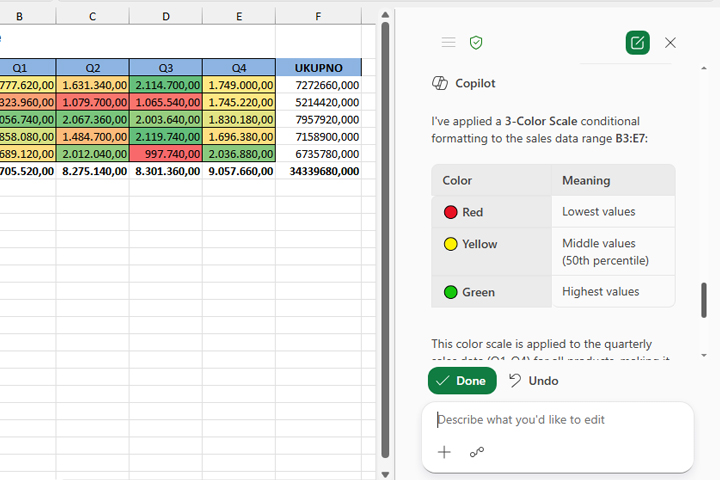
Copilot will do what we asked him to do, and at the same time in the window you can see how he achieved it.
In addition to creating formulas, it is also possible to influence other aspects of working with data within an Excel worksheet. For example, it is possible to add a conditional formatting rule.