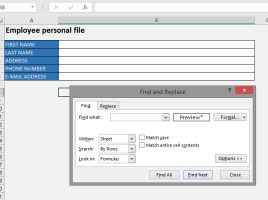
Generic forms

Excel has, within the VBA Editor, a form design tool that helps you easily fill in structured data tables. However, some of you still do not know the VBA and are unable to create the form yourself. Some others will find themselves in the situation that their job is overwhelmed by entering data one time. For all of you, in the “recipe” that follows, I will show how to enter data in a table using generic Excel forms.

“D” functions

The “D” functions are used for multiple data aggregation in the given table. In essence, they do the same thing as “IFS” functions in a slightly more elegant way, and whether this way is better – you estimate yourself! By the way, I am an adversary when the “experts” describe tables as databases. Sometimes the database actually makes one table, but this is very rare. Now, at least you know what letter “D” in ther prefix stands for!

Geography & Stocks

Excel has not changed essentially from its origin, and one of its features is that it does not have data types other than text and numbers. All other (derived) types are only differently formatted numbers. In this respect, Excel 2019 (O365) brings two new types: Stocks and Geography. Since it is unlikely that any of you will be trading on stock exchange, this “recipe” will most of the time deal with geographical data and their application.

Commenting on shared documents

Comments in Excel are not new option. Nevertheless, from the version to the version, there was more and more work to improve the possibility of collaborative work on the documents. Consequently, Excel has a new type of comment. They refer to commenting on shared documents, which in most cases are on the OneDrive repository, and you can view them in a simple way: by clicking the Comments button in the upper right corner of the window.

Doodling over the document

Excel is increasingly being used on mobile devices. Although, due to their size, they are not the ideal solution for making reports, as they enable mobility, these computers or tablet devices are a great solution for the presentation of reports. Recently Excel got a group of options, integrated in the Draw ribbon, which allow you to doodle over report and leave comments, just like you would do with the pencil.