
Excel Copilot: Rules and Skills
In order for Microsoft Copilot to work faster in Excel and provide results that are more in line with user expectations, it is now possible to define a set of rules that Copilot will apply when creating calculations, formatting tables and charts, as well as other tasks. This is where Rules comes in, a new feature that allows you to standardize the way Copilot processes and displays data. Combined with Skills, which expand its capabilities, Excel reporting becomes more accurate and efficient.
Rules are a set of instructions related to a specific Excel workbook used to define how Copilot will behave when executing a prompt. They are used to teach Copilot how you want to process data, create formulas, format data and charts, organize results… For example, you can define a rule that all financial amounts are displayed in euros with two decimal places, that charts are always created in a certain style, or that predefined categories are used for sales analysis. Copilot will then automatically apply these rules when generating content in that workbook, ensuring consistency and saving time.
You add rules by creating a worksheet named .Rules, and then listing them in order in the first column of the worksheet (column A). The rules apply to a specific workbook. If you want to apply them to another workbook: copy .Rules worksheet into it. Rules are applied if this worksheet is not hidden. By hiding a worksheet, they cease to be valid. Another way to add rules is to open the Copilot menu, click on the + icon, and then select the option to add .Rules worksheet.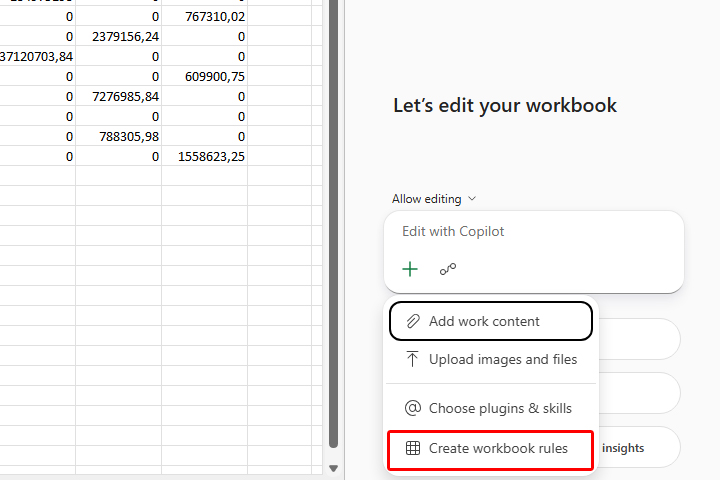
After adding the worksheet, enter prompts, exclusively in the first column of this worksheet.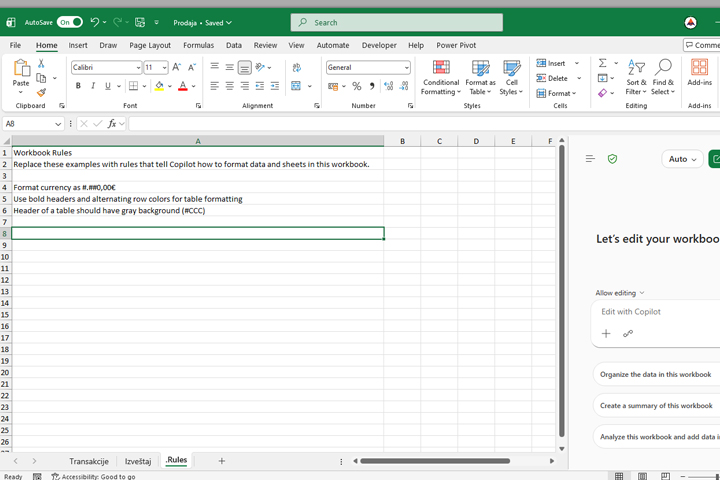
Finally, you need to write a prompt to apply the rules, e.g. “Use the rules to format this report”. After a few moments, Copilot will offer you a new look of the report in accordance with the rules.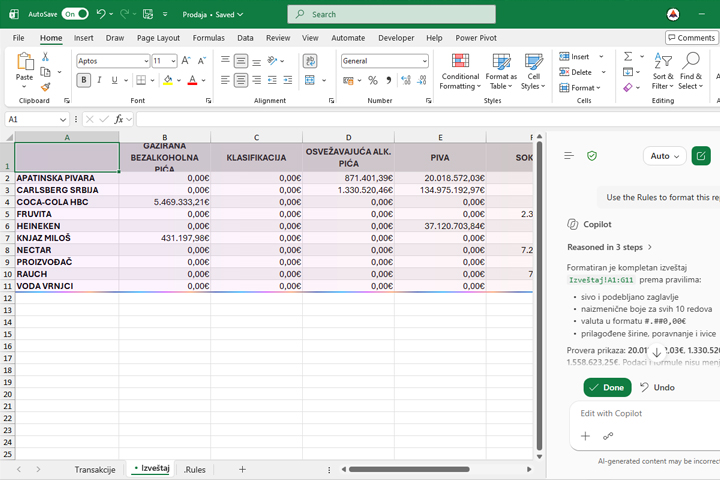
If you often apply the same set of rules or repeat similar tasks, it is worth considering creating Skills. In addition to the predefined skills that are available within Copilot, it is also possible to create your own, tailored to specific needs. Selecting the Choose plugins & skills option opens a menu with available skills, and you activate the desired skill by entering the @SkillName command, where SkillName is the name of the skill you want to apply.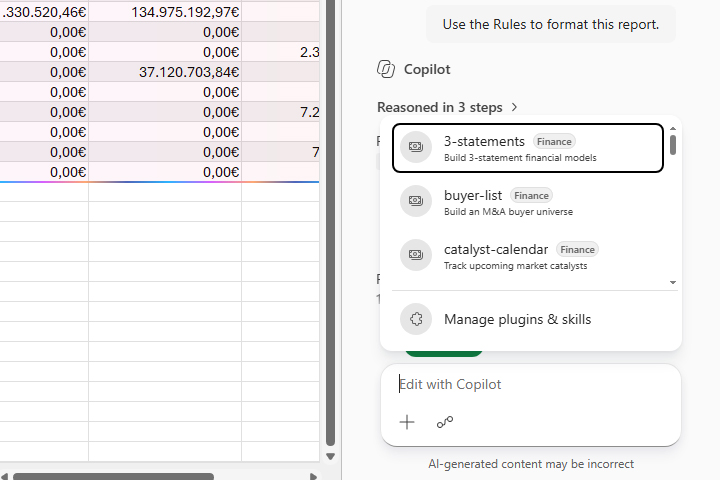
Custom skills can be created as text files with the extension .md (Markdown) that are stored in a special folder in the OneDrive repository. It is enough to create the appropriate folder, save the .md file in it with the instructions and prompts that you want Copilot to use, after which the skill will be available for calling directly from Excel. In this way, you can standardize complex or frequently used processes and significantly speed up work with Copilot.