Creating a name from selection
When you create formulas in Excel, you can refer to cell addresses, and you can also name cells or ranges by using the Name Manager to create the appropriate names. Can names be created automatically? Yes they can! After selecting a range, and giving a criterion in the Create from Selection option, you can create names automatically…
Let’s start with an example in which a table is shown with an overview of sales by city and year. We specify the names by selecting the range, and then run the Create from Selection option, which is located within the Defined Names group, within the Formulas ribbon.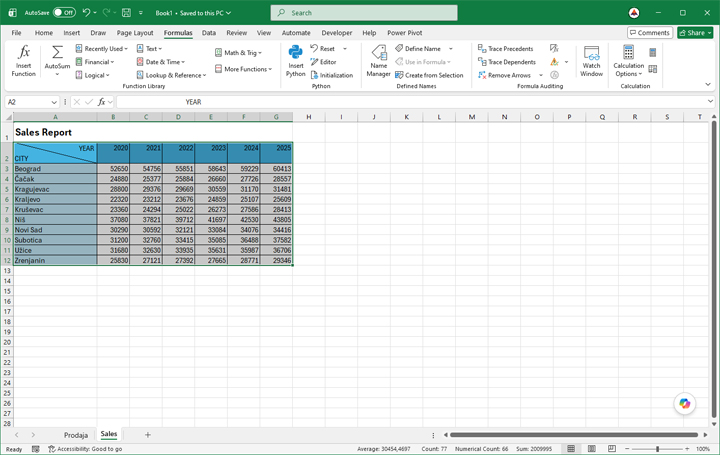
Let’s select the entire table, and then run the Create from Selection option by selecting it in the ribbon or by using the shortcut CRTL+SHIFT+F3.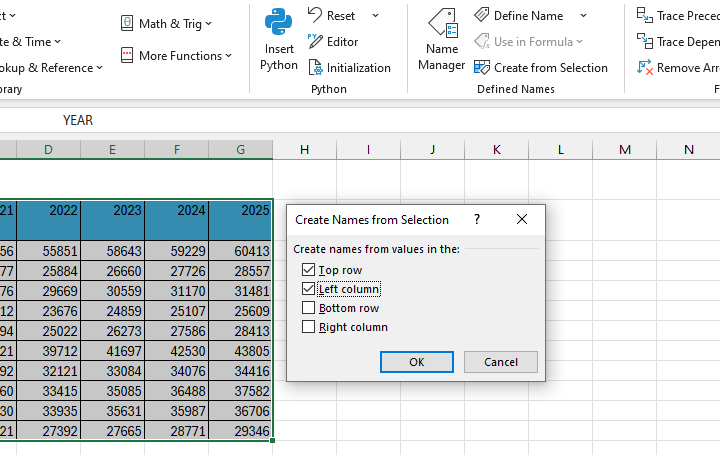
After you run the option, a window will appear in which you specify the criteria based on which you want to create names. Let’s choose Top row and Left Column. After confirming the action, Excel will create the appropriate names.
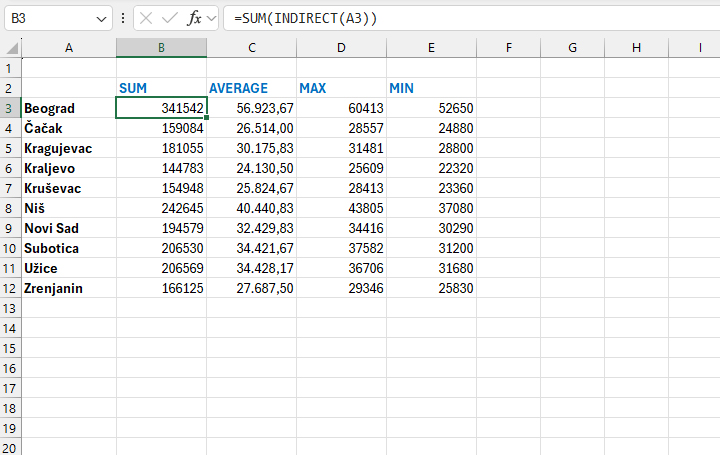
How to put this into practice? If we make a table where the names of the cities are shown in the first column, then we can add a few more columns titled: SUM, AVERAGE, MAX and MIN. Respectively, here we can calculate the total of sales in all years, the average, the highest and the lowest value of sales in a period.
How did Excel create names? The name “Beograd” represents the range B3:G3, the name “Čačak” the range B4:G4, etc. If we want to sum up the range for the name “Beograd,” we need to enter the formula:
=SUM(Beograd)
In the specific example, we used a slightly different formula, in order to take the names of the cities from the first column:
=SUM(INDIRECT(A3))
In the case of Novi Sad, the formula is different since the name consists of two words, that is, Excel created the name “Novi_Sad”. Here, we’ve entered the name directly into the formula:
=SUM(Novi_Sad)
Now we just need to correct the formulas using the AVERAGE, MAX and MIN functions to get the desired statistics…